



There’s a reason this collection has been the go-to for WoWs players for over a decade. Aslain’s Modpack is a massive, player-maintained bundle that covers basically everything – from UI tweaks and battle tools to full ship skins and custom voice lines. And don’t worry, it’s not some sketchy third-party hack. Wargaming has officially cleared every mod inside it, so you’re fully compliant with the rules from day one.
The sheer amount of stuff in here is wild. You’ve got six main categories to play with:
- UI enhancements – panels, meters, timers, and indicators.
- Minimap and battle interface – detection circles, ping displays, and radar overlays.
- Ship and port skins – visual overhauls that range from subtle to “whoa.”
- Crosshairs and aiming aids – nomogram sights, dynamic reticles, and speed displays.
- Voice packs and sound mods – full audio replacements and SFX tweaks.
- Tools and utilities – AFK monitors, build viewers, and FPS limiters.
You’ve got two ways to get it now. The classic installer has been around forever – it’s reliable and still gets regular updates. But then there’s the newer Aslain’s WoWs Mod Manager app. Honestly, if you’re starting fresh, just get the app. You download it once, it handles its own updates, and it runs way faster than the old installer. Players who’ve been using this for years rarely run into issues. That kind of track record speaks for itself.
What Is Aslain’s Modpack for World of Warships?
There’s a reason this collection has been the go-to for WoWs players for over a decade. Aslain’s Modpack is a massive, player-maintained bundle that covers basically everything – from UI tweaks and battle tools to full ship skins and custom voice lines. And don’t worry, it’s not some sketchy third-party hack. Wargaming has officially cleared every mod inside it, so you’re fully compliant with the rules from day one. player-maintained bundle
How to Download and Install Aslain’s Modpack

First rule: close World of Warships before you touch anything. Seriously. Running the installer while the game is open is just asking for a headache.
Download Steps
- Head to the official Aslain’s modpack page. It’s the only legit source, so don’t go hunting elsewhere.
- Pick your poison: the classic modpack installer (currently version 15.9.0 05) or the Mod Manager app.
- Save the file somewhere easy to find, like your Downloads folder.
- If the file looks weird or has a strange extension, just rename it to
.exeso Windows knows what to do with it.
Installation Steps
- Double-check the game is closed.
- Launch the
.exefile. - Windows might freak out and give you a security warning. Just hit “More info” and then “Run anyway.” It’s a “trust me, bro” button, but in this case, the site is legitimate.
- Point the installer to your game folder (usually something like
D:Wargaming GamesWorld of Warships). - Set your preferences:
- Check the “Show preview window” box. This is huge – it lets you see what a mod actually looks like before you install it.
- Choose “Custom” if you want to hand-pick your mods, or “Default” if you just want the basics.
- Hit “Next” and then “Install.” Let it do its thing.
- You can find all your new toys in the res_mods folder inside your WoWs directory.
The Mod Manager app makes this even easier. Once it’s set up, it tracks versions and updates on its own, so you don’t have to keep downloading new files manually. Pro tip: don’t go overboard. Start with a few mods, jump in a game, and see how it runs. If you install fifty mods at once and the game crashes, you’ll have no idea which one broke it.
How to Update or Uninstall Aslain’s Modpack
Updating
Updating is simple, but there’s one rule that trips people up: never uninstall the modpack to update it.
- Just run the new installer directly over the old one.
- Check the official page to see if any of your favorite mods were temporarily pulled because a game patch broke them.
- Make sure the game is closed.
- The installer actually remembers what you picked last time, so you don’t have to re-select everything from scratch.
Uninstalling
If you want to go back to a clean, vanilla game, just use the standard Windows “Add or Remove Programs” feature. If the game still won’t start after that, Aslain provides a specific troubleshooting link to clear out any leftover file conflicts.
Recommended and Popular Mods in Aslain’s Modpack
There are over 300 mods in here. Let’s be real – nobody needs all of them. Every extra mod you add puts a bit more strain on your PC, so be selective.
Here’s what the veterans actually use:
- Team Panels by Taro – A much cleaner way to see who’s still in the fight.
- Ship movement indicator – This is a game-changer. It shows a simple light: green for forward, red for reverse. No more guessing if that BB is backing up.
- Nomogram Crosshair – If you only install one mod, make it this one. It calculates shell flight time against target speed for you. It’s basically math-assisted aiming.
- Detection monitor – Puts a clear mark next to teammates when they get spotted.
- Smoke marker – Shows the actual “ticks” of a smoke screen so you know exactly where the cover is.
- Minimap by Taro – Way better than the stock map.
- 3D Radar and 3D Hydro – Visualizes exactly how far those tools reach in the 3D world.
- AFK monitor – So you know exactly who to blame when a flank collapses.
- Radar timer – A countdown for how long that enemy radar is going to keep you lit up.
- FPS limiter – Keeps your PC from melting in the port by capping the frame rate.
Mod Catalogue Sections

The catalogue is broken down into sections so you don’t get lost:
- Crosshair – Sights and reticles.
- Skin – Visual overhauls for your ships.
- ShipIcons – Better silhouettes for the UI.
- Hud/UI – Changes to the actual heads-up display and menus.
- Port – Improvements for when you’re just hanging out in the docks.
- Voice/Sound – Audio swaps and crew voices.
- Tools – Functional aids and utilities.
Visual skins are always the most popular downloads, but the functional tools like crosshairs and movement indicators are what actually help you win games.
Key UI and Minimap Settings
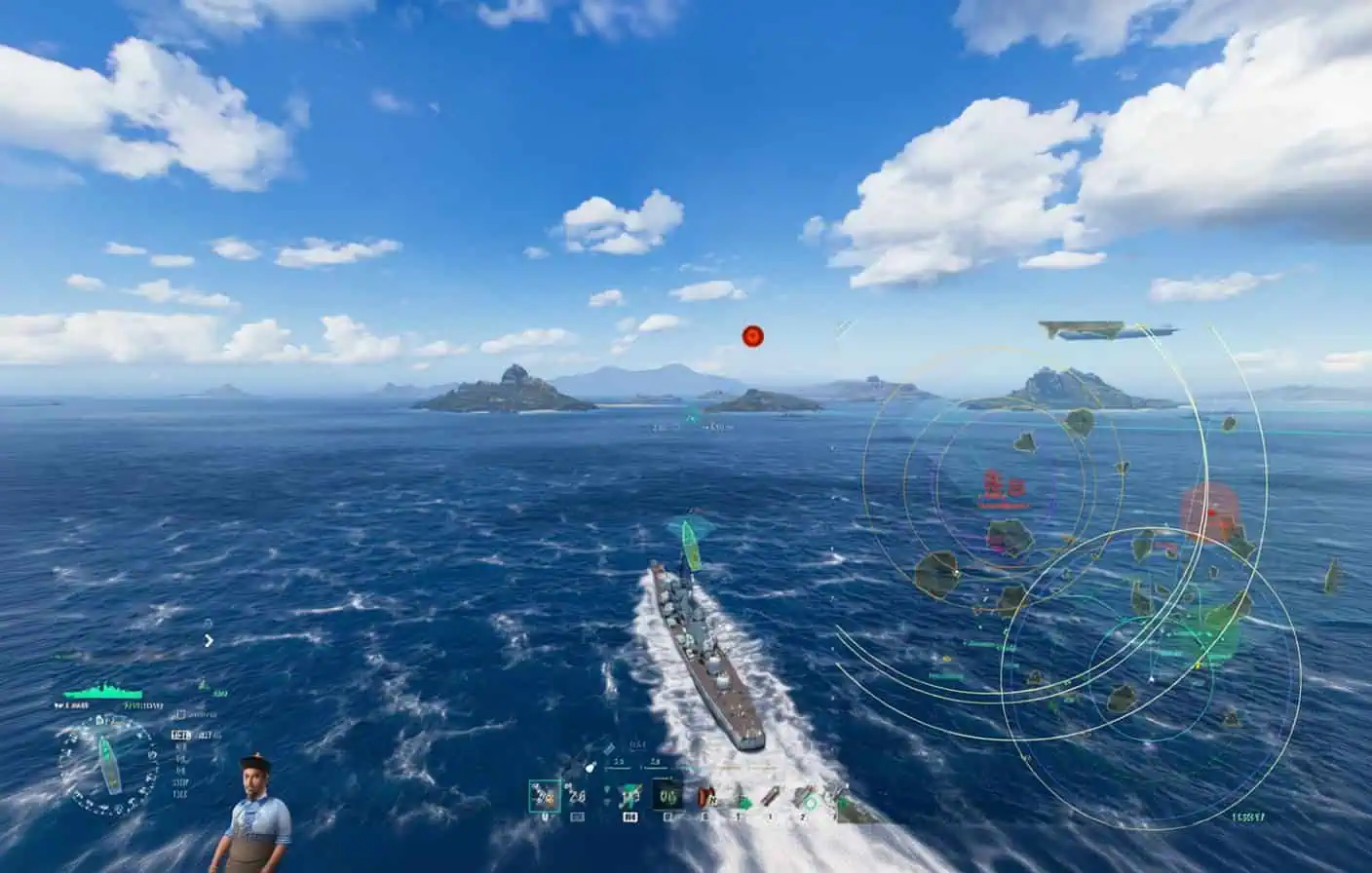
Getting the mods installed is only half the battle. You’ve got to set them up right.
- Keep detection ranges visible – Set your minimap circles once and leave them.
- Turn off circle fill – Solid circles on the minimap just create visual clutter. Use outlines so you can actually see the map underneath.
- Watch your mod count – A lean setup of 15 mods will always run smoother than a bloated list of 50.
- Cap your Port FPS – Setting this to 60 saves your GPU a lot of work while you’re just tweaking builds.
Notable Features and Recent Updates

The modpack is always evolving. A few recent highlights:
- Achievement Tracker – Shows your progress toward medals like High Caliber or Dreadnought in real-time during the match.
- Advanced Torpedo Marker – Now tells you if a torpedo is just spotted or if it’s actually homing in on you.
- Mod Manager Speed – The new app is roughly 10x faster than the old way of doing things.
- 15.9 Compatibility – The pack is already updated for the latest ships and commanders.
The changelog is actually worth reading. If a mod suddenly disappears, it’s usually because a game update broke it, and Aslain will list it there as “temporarily removed” until it’s fixed.
Troubleshooting and Safety
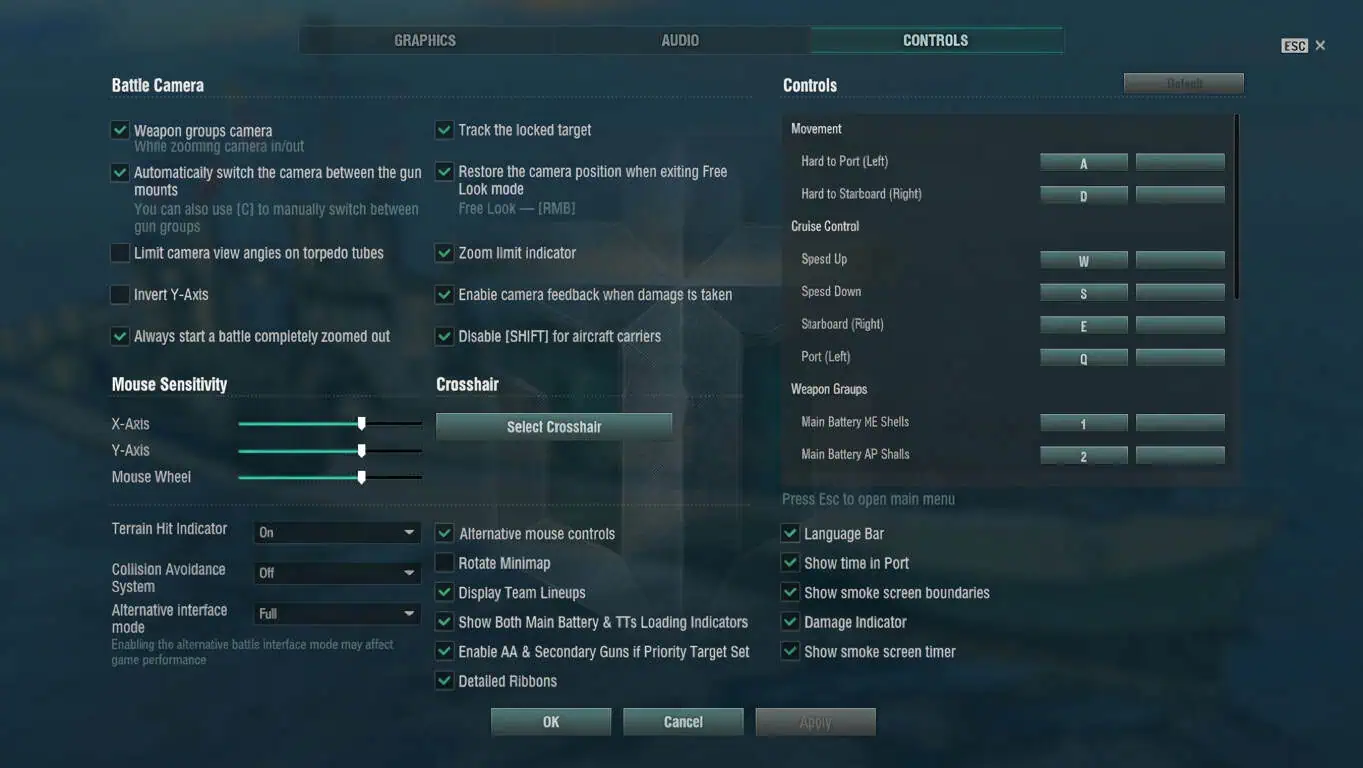
Let’s clear the air: Aslain’s is safe. Wargaming knows about it, approves of it, and hasn’t banned anyone for using it. If a mod ever breaks the rules, it gets tossed out immediately.
Quick fixes for common issues:
- Windows blocks the installer? Hit “More info” and “Run anyway.”
- Game acting weird? Rerun the installer and uncheck the last few mods you added.
- Don’t mix and match. Don’t try to run Aslain’s and Wargaming’s official ModStation at the same time. They will fight, and your game will lose.
- Regen monitors and Ship Management are usually the first things to check if your game starts crashing – they can be a bit finicky after a patch.
Stick to the official site, update after every big patch, and don’t click every single box in the installer. Do that, and your WoWs experience will be miles better.
