


Errors in War Thunder Mobile always seem to hit at the worst possible time – right in the middle of a match, or when you’re just trying to keep a login streak alive. Whether you’re staring at a frozen loading screen or a fresh install that won’t even open, I’ve rounded up every working fix and community workaround right here. Bookmark this, because you’re going to need it.
Common Errors You’ll Actually Run Into
Before you start messing with settings, figure out what you’re actually dealing with. These are the usual suspects:
Login and Auth Headaches:
- OUT_OF_ENTRIES (code: -32500): You’ll see this at the login screen. It’s almost always a server-side overload on Gaijin’s end, not your phone.
- Stuck on loading screen: The progress bar just gives up and stays frozen.
- “Login Failed”: The generic “no” from the server. Could be anything.
Crash Scenarios:
- The app closes the second you tap it (super common after a big update).
- Constant restarts on Android during a match.
- The iPhone version crashing at the exact same spot every time.
Connection Problems:
- “Network error” or “Not connecting to server.”
- Authorization server unavailable.
- Lag spikes that eventually just kick you to the menu.
Install & Launch Issues:
- Black or white screens that never go away.
- “App not installed” errors when trying to side-load the APK.
Update Loops:
- The game demands an update you just finished downloading.
- It says an update is required, but the store shows nothing.
Audio and Visual Bugs:
- Radio messages going completely silent.
- “Failed to initialize graphics subsystem”: This one mostly haunts emulator players.
Quick Fixes and Troubleshooting
Try these in order. Usually, one of the first few steps clears the problem.
- The Classic Reboot: Close the app and restart your device. A full power cycle clears out cached junk that a simple restart misses.
- Check the Store: Outdated builds are the #1 cause of crashes after a patch. Make sure you aren’t lagging behind on a version update.
- Check Your Specs: If it won’t launch at all, your hardware might just be too old. Not every phone can handle this game.
- Swap Your Connection: Switch from Wi-Fi to mobile data (or vice versa). Sometimes the network path is just broken, and switching fixes it instantly.
- Airplane Mode Trick: Flip Airplane mode on for 10 seconds, then off. It forces a fresh network handshake.
- The Loading Screen Bypass: This is a community favorite that actually works:
- Open the game and wait for it to freeze.
- Kill your internet (Wi-Fi and data) while it’s stuck.
- Wait for the authorization error to pop up.
- This forces the **Gaijin login screen** to appear.
- Turn your internet back on and log in.
- Reinstall (The Right Way):
- Delete the app and start over.
- Keep your screen on the whole time. Do not swap to YouTube or check Discord while it’s downloading.
- Switching apps mid-install often leads to missing files, even if the download looks finished.
- Clear Cache (Android): Go to Settings → Apps → War Thunder Mobile → Storage and hit Clear Cache. If that fails, hit Clear Data (just be ready to log back in).
- Fixing Silent Radio: If the voices are gone, switch your in-game language to English and restart. It’s a weird bug, but this fixes it.
- Ghost Updates: If the game keeps asking for an update that doesn’t exist, restart the app, then the phone, then check the store again.
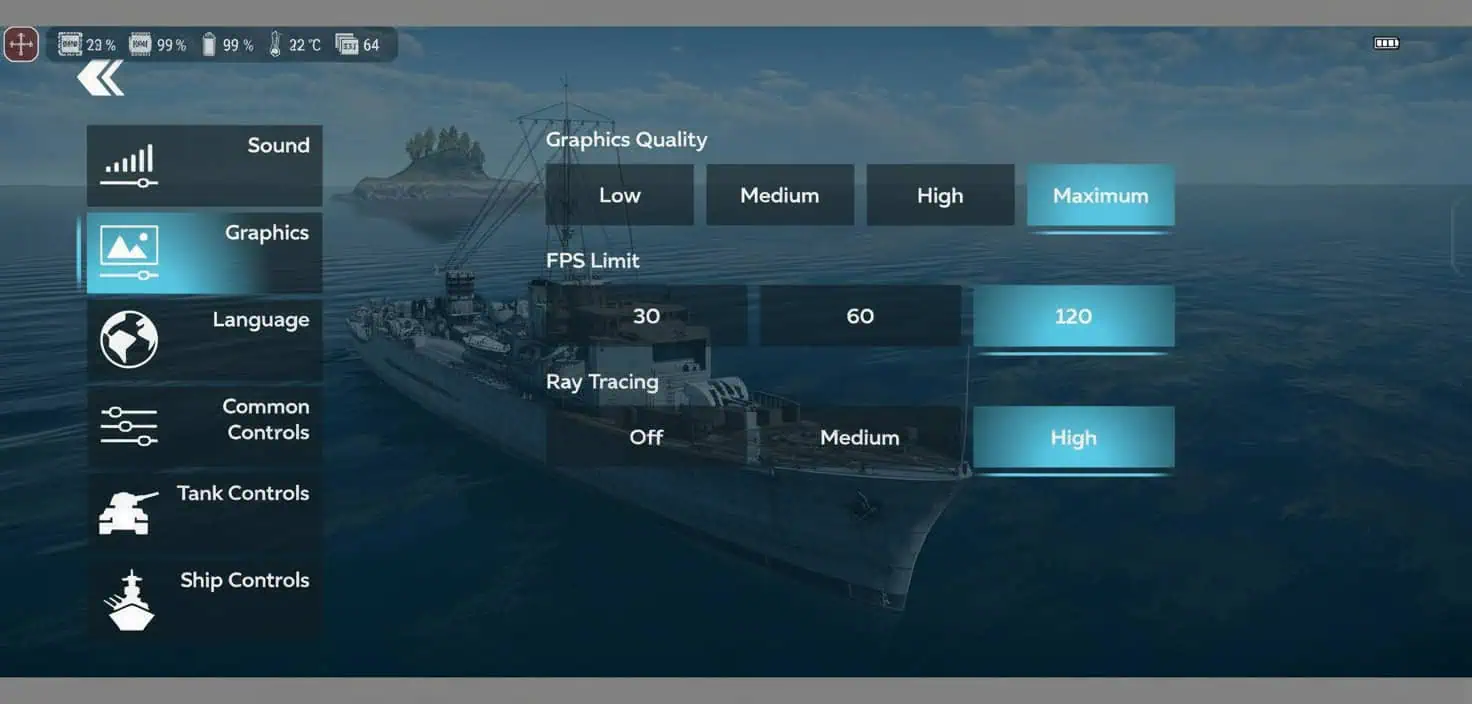
- Heat Management: If you’re crashing during long sessions, your phone is probably overheating. Drop the graphics settings down a notch.
- Emulator Fixes:
- Stick to BlueStacks or LDPlayer 9.
- “Error parsing the package” usually just means the update hasn’t hit your region yet. You just have to wait.
- If you get a graphics initialization error, you’ll need to note your instance type (Pie64, etc.) and GPU for a bug report.
System Requirements
If your hardware is borderline, the game is going to struggle. Here’s the baseline:
| Platform | Minimum | Recommended |
|---|---|---|
| Android | Android 5.0, 2GB RAM, 5GB space | Android 8.0, 4GB RAM, 8GB space |
| iOS | iOS 13, iPhone 6s, 5GB space | iPhone XS or newer, 8GB+ space |
| PC Emulator | Win 7, 2GB RAM, Admin rights | Win 10, Dedicated GPU, 4GB RAM |
Where to Get Help
Don’t waste time in the wrong channel. Use Support for money/account issues and the CBR for bugs.
Support Service
Use this for: Login issues, account linking, missing GE/purchases, or payment errors.
How: Hit “Support” in your in-game profile or use the website.
Pro Tip: Fill out every single field. Incomplete tickets get buried. Also, check your spam folder for their reply.
Community Bug Report (CBR)
Use this for: Crashes, glitches, map bugs, or broken controls.
How: Main Menu → “Report a Bug.”
Pro Tip: Be specific. “Game broke” helps no one. Tell them exactly what you were doing when it died and attach your logs.
How to Grab Your Log Files
Logs are the only way the devs can actually see what went wrong.
Important: Fully close the game before grabbing these. If it’s running in the background, the log won’t save correctly.
- Android: Go to
Android/media/com.gaijingames.wtm/files/logs/aces. Look for debug0.clog. (You might need to “show hidden files” in your manager). - iOS: Go to
Files/War Thunder Mobileand find aces.clog.
Note: The game only keeps the last four sessions. If you crash, get the log immediately. If you play five more matches, the crash data is overwritten.
When to Wait vs. When to Panic
- Wait it out: If you see OUT_OF_ENTRIES (-32500) or connection errors right after a big update, the servers are just melting. Give it a few hours; it usually fixes itself.
- Escalate: If the game crashes every single time you open it, or if your money disappears and you don’t get your items, hit up support immediately.
Final Tips for Stability
- Don’t multi-task during installs: Seriously, stay on the download screen. Stay on the download screen.
- Cool your phone: High settings look great but trigger thermal throttling, which leads to “crashes” that are actually just your phone protecting itself.
- Check for maintenance: Before you get mad that the servers are down, check the official Discord or site. It might be a scheduled update.
