


Windrose drops you into a procedurally generated archipelago where no two runs look the same. That’s great for variety, but it makes a standard static map pretty much useless the second you start a new save. The interactive map fixes this, and once you get the hang of how it works, navigating your world feels like a completely different game.
What This Tool Actually Does

This map is built specifically for procedural worlds. Instead of showing a generic layout, it reads your world seed or save data to generate a chart that actually matches your specific archipelago.
Here’s what you’re getting:
- Smooth Navigation: Pan and zoom across the whole world without it chugging.
- Smart Search: Type a name or tag and hit Enter to jump between matches.
- Deep Filters: Toggle entire categories like caves, ship encounters, resource nodes, or NPCs.
- Marker Control: Hide the clutter so you only see what you’re actually hunting.
- Pin Cards: Click a marker to see notes and artwork for that spot.
- Shareable Links: Copy the URL to send a crewmate directly to a specific pin.
- X/Y Coordinates: Check the corner for precise pings – perfect for squad callouts.
- Privacy: No account needed, and everything processes locally on your PC.
Just a heads-up: the markers are community-driven. It’s a planning tool, not a pixel-perfect live spawn tracker, so keep that in mind while you’re exploring.
How Procedural Generation Works Here
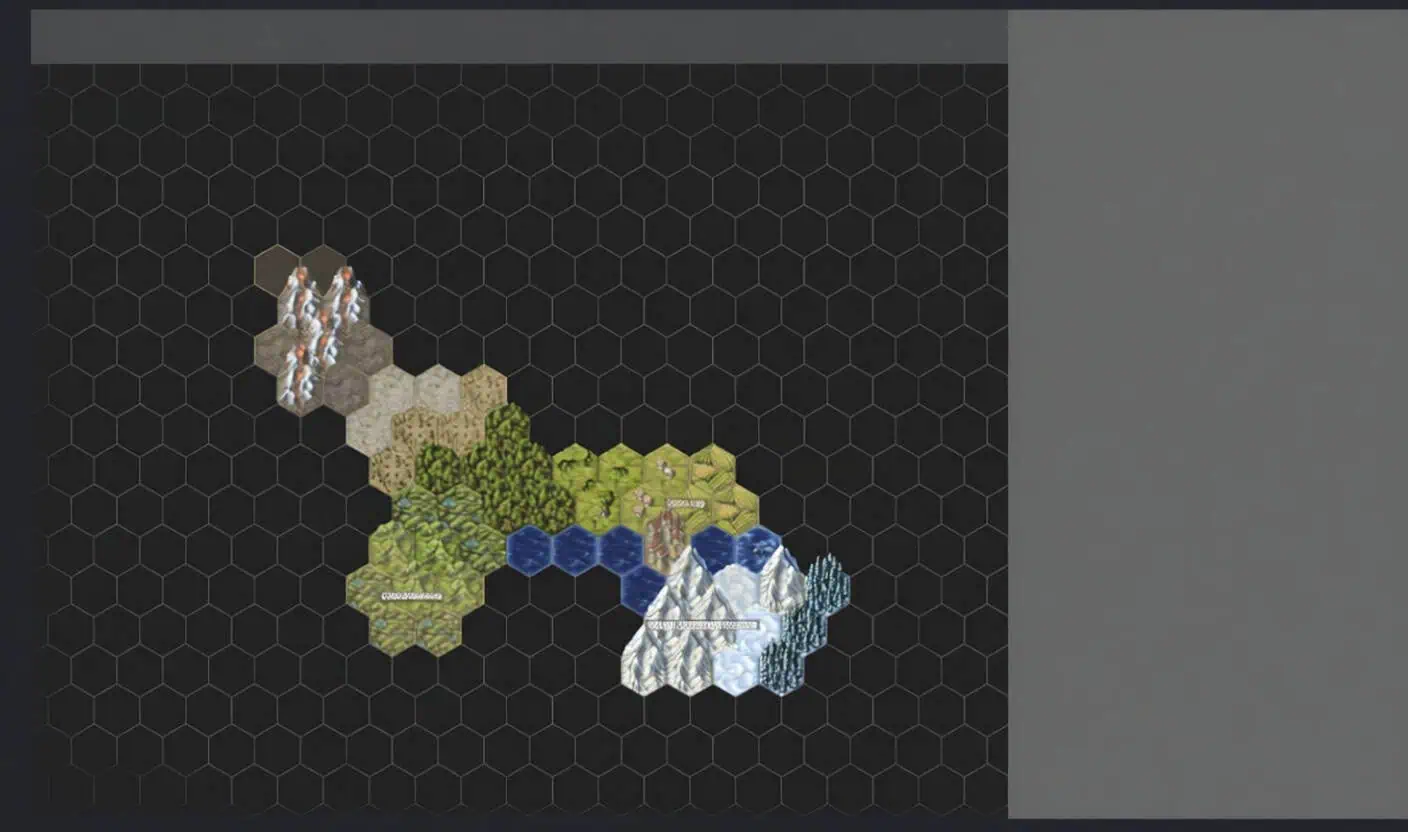
The devs confirmed that while the archipelago layout is random, the individual islands are “hand-crafted.” This is the part most people miss: The islands themselves – their shapes, POIs, and story content – are the same for everyone. The game just shakes the bag and drops them in different spots for every seed. You and a friend will see the same Tortuga, but yours might be in the north while theirs is way down south. This is exactly why the interactive map needs to read your specific save data to be useful.
Loading Your World
How to Import Your Data
You’ve got two ways to get your map running:
- Option A: Select every
.sstfile from your save folder. This handles the layout perfectly. - Option B: Choose the entire world folder. This lets the scanner dig through RocksDB files for extra resource data.
Worth saying: None of your files actually leave your computer. The tool does all the heavy lifting locally, so your save data stays private.
Finding Your Save Files
Solo / Offline Players
- Host your game first so the save is up to date.
- Go to
%LOCALAPPDATA%R5SavedSaveProfilesin your file explorer. - Open the folder named with your SteamID64 (the 17-digit one).
- Head into
RocksDB, pick the highest-numbered version folder (like0.10.0), then openWorlds. - Find the folder with the random string of letters and numbers – that’s your World ID.
Pro tip: If you have multiple saves, hover over them in-game to check the World ID so you don’t grab the wrong one.
Self-Hosted Servers (SteamCMD)
Navigate to: steamappscommonWindrose Dedicated ServerR5SavedThe folder structure from there is the same as the solo path.
External Hosts (Nitrado, Nodecraft, etc.)
Don’t make the mistake of using your local files for a server world – it won’t work. You need the files from the host.
- Open your host’s File Manager.
- Navigate to:
R5 → Saved → SaveProfiles → Default → RocksDB → [highest version] → Worlds. - Compress the world folder into a
.zip, download it, and extract it on your PC.
Running the Map
- Open the Interactive Map page and hit Load.
- Choose World Folder or .sst files.
- Select your files and hit View.
You can also just drag and drop the folder directly onto the page to save time.
Using Filters and Search
Once the map loads, start filtering. If you’re just doing story missions, hide the resource nodes to clear the screen. If you’re hunting specific materials, toggle everything else off. The coordinate readout is a lifesaver for groups. Telling your crew to head to “the big island” is useless when every island is big, but giving them exact X/Y coordinates works every time.
Live Tracking & Companion App

The Windrose Companion App turns this into a real-time GPS.
- Download and run the Windrose Companion App.
- Export the layout as a JSON file and upload it to the map.
- For live tracking, hit Go Live on the map and let it connect to the app.
Once it’s live, the map follows your character. It’ll show you nearby pigs, mining spots, and coconuts in real time. Honestly, putting this on a second monitor is a game-changer – it basically gives you the high-end minimap the game is missing.
Sharing with the Crew: You can send that JSON file to your friends. They can upload it to their own browser so everyone is looking at the exact same map while you sail.
Troubleshooting & Tips
- Wrong Files: If the map looks blank or wrong, you probably grabbed the wrong folder. Server players, make sure you aren’t accidentally using your solo save files.
- Version Mismatch: Always use the highest-numbered folder in
RocksDB. If the devs patch the game, the old folders won’t have your latest progress. - Resource Issues: If the layout looks right but resources are missing, try loading the entire world folder (Option B) instead of just the
.sstfiles. - Community Accuracy: Remember, these markers are placed by players. If a patch changes a spawn, the map might take a minute to catch up. Trust the in-game tooltips if things look weird.
